Tuesday, January 3, 2012

Google's new look for mobile


When it comes to mobile search, we strive to not only give you the same comprehensiveness and relevance as when searching with Google on your computer, but also a consistent look, feel, and overall user experience. So today, as we roll out a new look for Google Search results on your computer, we are happy to announce similar changes to Google Search results for mobile.

When you go to Google.com in the US on your iPhone or Android-powered device, and enter a search, you can now tap on the button to the left of the search box on the results page to see a new search options menu. Then, selecting any item in the menu will refine your search. For example, if you are looking for recent results for "Mother's day gift", simply tap the "Past week" option.

You may notice that when the menu expands, the search results slide off screen to the right. Note that you can still interact with them and see them in full just by panning to the right. Also, there are some additional menu options, like "News" and "Products". In the weeks to come, we will be supporting more devices and locales, and expanding the number of options available.

Distracted driving and cell phones

"Distracted driving" is when you drive while taking your hands off the steering wheel, your eyes off the road, or your mind off of driving. Whether you are eating while driving or using your cell phone while driving, distracted driving increases your chances of getting into a serious accident. Today, organizations throughout the US are collaborating to raise the awareness about the dangers of distracted driving. Read more about what the Google Maps team is doing with the Oprah Winfrey Show.

With the exception of Google Maps Navigation, which is designed for hands-free use with a car dock, Google Mobile products are not intended to be used while you are driving. Hand your phone to a passenger or park your car in a safe place if you need to search for a restaurant or check your email while behind the wheel.

For more information about distracted driving and how you can help prevent it, please visitwww.distracteddriving.gov. And if you're in the US and have an iPhone, Palm Pre, or Android-powered device, you can go to Google.com in your browser today to see our mobile doodle. Do not do this while you are driving, of course.

Universal search features in Google Suggest for mobile


Last December on the Official Google Blog, we announced how universal search features in Google Suggest could show useful information while the user is composing a query from the Google home page. Today, we are bringing this same functionality to mobile phones so that getting answers while on the go is even faster and easier. For example, let's say you're flying to London and want to know: Is my flight on time? Or what is the exchange rate of the pound? As you type the flight "Ba 284" or "Usd in pounds", the answers are provided right below the search box, without having to wait for the results page. Other searches that show answers include weather (e.g., "weather london"), stock quotes (e.g., "intc"), current time (e.g., "time london"), calculator (e.g. "29*37") and unit conversion (e.g., "220 miles in km").
To try this yourself, go to google.com on your phone's browser and type your own query to see these special results under the search box. Note that if you don't see these results at first, try refreshing the page in your browser. The functionality is currently supported on Android-powered devices, iPhones/iPods and Palm WebOS devices in the US.

Stars in mobile search


Earlier this month on the Official Google Blog, we announced how stars make search more personal by allowing you to mark and rediscover your favorite content. Today, we are extending this feature so that you can get to your favorite content on your phone, anytime, anywhere. For example, if you previously searched for "car reviews" and starred a few sites that were useful while researching cars on your computer, searching for "car reviews" on your phone will allow you to rediscover your starred items. If there are additional results that you want to star while on mobile, simply click the star marker beside the result, and you will be able to see it later when searching from your computer or phone.

To try this yourself, go to google.com on your phone's browser, sign in to your Google Account and do a search. Star a few results and then do the search again to see your starred items appear at the top of your results. To see the same starred items between computer and phone, make sure you are signed in to the same account. The stars in search functionality is currently supported on Android phones, iPhones/iPods, and Palm WebOS devices in the US.

Google Voice comes to iPhone and Palm WebOS

A few weeks ago, Alex Nicolaou, Engineering Manager, wrote about the benefits of the fast and feature-rich iterative web app. Delivering Google services via mobile browsers has worked well for the Gmail team, so we decided to follow the same approach with Google Voice.

Today, we're excited to introduce the Google Voice web app for the iPhone and Palm WebOS devices. This HTML5 application provides you with a fast and versatile mobile experience for Google Voice because it uses the latest advancements in web technologies. For example, AppCache lets you interact with web apps without a network connection and local databases allow you to store data locally on the device, so you don't lose data even when you close the browser.

One of the great benefits of web applications is that you don't need to download and install an app on your phone. Instead, simply point your mobile browser to m.google.com/voice and sign in to your Google Voice account.

Then you can make calls from your phone that show your Google Voice number as the caller ID. You can also listen to voicemail and read voicemail transcripts, send and receive text messages for free, and take advantage of the low international call rates offered by Google Voice.


For quick access to the most important features like "Dialer", "Compose SMS", "Inbox" or "Contacts," you can add shortcuts to your iPhone home screen or Palm Launcher -- so cheap calls and messaging will be just a single click away. And because the Google Voice web app uses advanced features of modern HTML5 browsers, it offers native app-like performance and speed.

For more information visit m.google.com/voice or take a look at the Google Mobile Help Center. Please note, the web app is compatible with all versions of Palm WebOS and iPhone OS 3.0 and higher.

A Google Voice account is required to use the app, and Google Voice is currently only available in the United States. To learn more about Google Voice or request an invite, visitwww.google.com/voice or read the Google Voice blog. 

Get movie trailers and more with Google Search for mobile


Heads up, movie fans -- today we've launched a mobile version of our new Google Search results for movies, which makes it easier to plan a trip to the movies. Just go to google.comin the web browser on your iPhone, Palm WebOS, or Android-powered device, search for "movies", and then tap on the "More movies" link. From there, you can either browse a list of movies or select the "Theaters" button to browse a list of theaters near you.

Our new movie listings page now includes buttons to play trailers right on your phone, ratings and categories, movie posters, upcoming showtimes, and a concise list of the nearest theaters and their distances from you. We keep information on this page succinct so you can quickly browse through shows and showtimes to help you decide which movie to see. If you want more details about a specific movie, just touch the poster or movie title and you'll see our new movie details page that has a synopsis of the movie, a more detailed list of showtimes, the cast and crew, and pictures. Watch our trailer for a quick demo:


When you browse by theater, you'll see a map of the theaters nearest to you. Then, just tap on the link to any particular theater to see what shows are playing there and what times they're playing. Of course, you can also search for specific movies or theaters and see their listings right away. Try searching for recent movies like "New Moon" or "Where the Wild Things Are" or search for "glendale 18 los angeles".
 
If you enjoy searching for movies with Google nearly as much as we have during testing, then this will be the beginning of a beautiful friendship. Our new search results for movies are available in English in the US, UK, Canada, Ireland, Australia, and New Zealand. As always, let us know your feedback. This conversation can serve no purpose anymore. Goodbye.

Google Custom Search for mobile


Google Custom Search makes it easy for web site owners to add Google-powered search boxes to their sites. Since a rapidly growing percentage of web search traffic originates from smartphones, we're pleased to announce that Google Custom Search now formats search results for mobile phones.

If you own a web site and add a Google Custom Search box to it, when your users access the site on an Android-powered phone, iPhone, iPod Touch, or Palm Pre, they will can see optimized search results formatted for these devices. When they search on your web site, they are can be redirected to a Google-hosted Custom Search mobile results page created specifically for your Custom Search engine. If you'd like to serve these mobile results from your own web site, you can host your own version of the mobile Custom Search home page.
 

You can test this out on your phone right now. Here are a few samples: search for user-generated content (e.g., search for "zakumi") from sites like Wikipedia or Knol, or look formore information on Custom Search (e.g., search for "promotion"). As you can see, Custom Mobile Search results can match the look and feel of your own website, and we've enabled interactive features, such as label tabs for navigation, as well as promotions. Look for more features coming soon, too. For more information on Custom Search, and more details on the mobile configuration, visit the Custom Search blog.

Let us know how this works on your favorite smartphone.

Update on 10/23 @ 9:06 AM: Note that some configuration is required for the mobile-formatted results to be shown.

Introducing Search Options for mobile

Finding the exact information you need sometimes requires filtering and refining your search results. Earlier in the year, we launched a collection of tools called Search Options which enable you to easily and quickly do this from a computer. Today in the US, we are making Search Options available on Android/iPhone/Palm WebOS devices so that you can slice and dice your mobile search results as well. For example, suppose you are shopping at a store for a camera, and you would like to see what users have been saying about a specific model within the past week. You can do this simply by searching for the name of the product. Then, on the search results page, use "Options" to filter by "Forums" and refine further by choosing "Past week". See the screenshots below for a sample query. Try these and other Search Options yourself by simply doing a mobile search on google.com and selecting Options.
 

Monday, January 2, 2012

Introducing the Gmail app for iPhone, iPad and iPod touch

Waiting. Walking. Watching TV. Working out. Winding down. Waking up. We check email pretty much everywhere these days. And when we do, we want easy access to our important messages so we can respond quickly and get back to life -- or slinging birds at thieving green pigs.

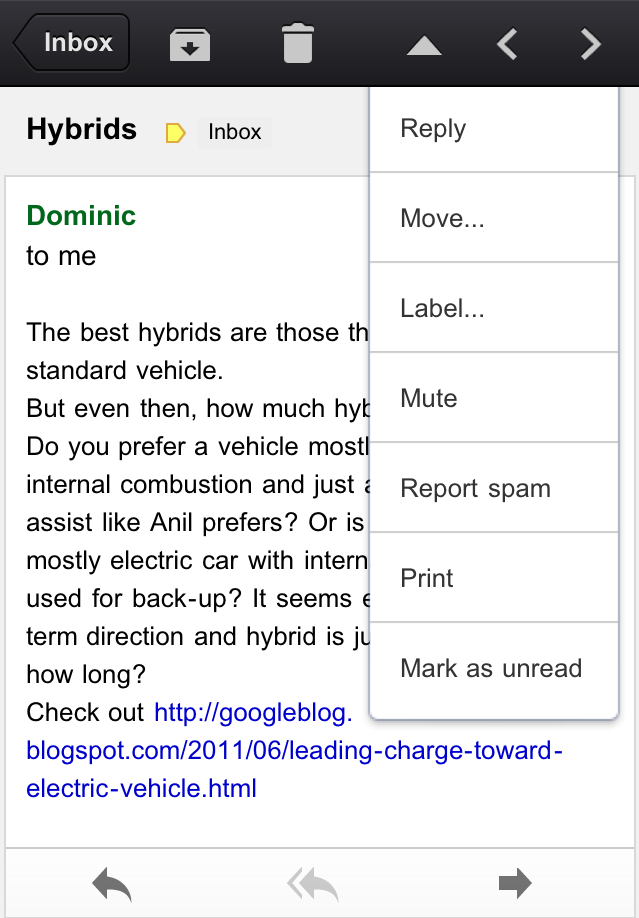
With that in mind, we’ve created a new Gmail app for iPhone, iPad, and iPod touch. We’ve combined your favorite features from the Gmail mobile web app and iOS into one app so you can be more productive on the go. It’s designed to be fast, efficient and take full advantage of the touchscreen and notification capabilities of your device. And it’s one more reason toswitch to Gmail.

Speed
We want to give you the information you need quickly, with minimal effort and distraction. So we’ve included some time-saving features:


  • Get alerted to new messages with push notifications and sounds
  • Find an email in seconds with search across your entire inbox
  • Autocomplete email addresses from your Gmail contacts or select from your device’s address book
  • Upload photos with a click using the new attachment button in compose view
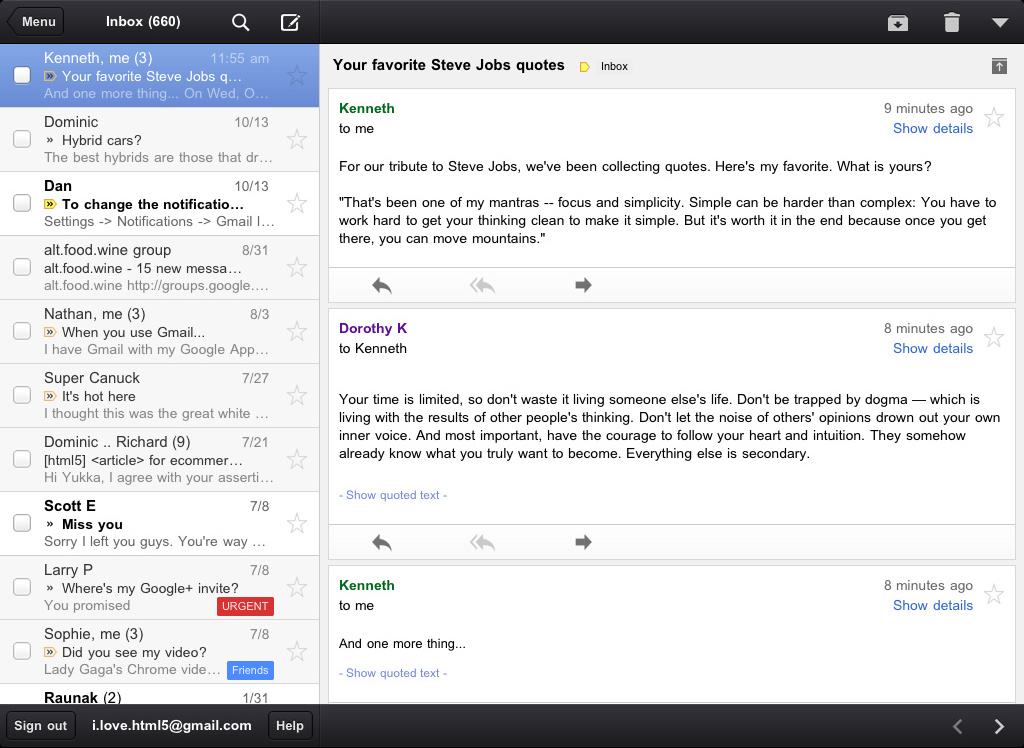
  • On iPad, navigate your inbox and read your mail simultaneously with split view


Upload photos

Reply, move, label and more


Efficiency
Our inboxes overflow with dozens and even hundreds of messages a day—and this can be even more challenging on a smaller screen. The new Gmail app helps organize your mail so you don’t have to go wading through your inbox to find that key message from your boss or loved one:

  • Focus on your important messages first with Priority Inbox
  • Quickly scan countless emails on the same subject with threaded conversations
  • Organize your mail by archiving, labelling, starring, deleting and reporting spam


Threaded conversations on the iPad


Touch
We’ve also optimized the interface so you can perform common actions in Gmail with the lightest touch:

  • Pull down your inbox to rapidly refresh if you’re eager for new mail
  • Swipe right to view your labels without ever leaving your inbox
  • Swiftly scroll through dozens of emails just by sliding your finger


Pull down to refresh

Swipe right to view labels

We hope the Gmail app makes checking email on the go a little easier. It is available in theApp Store today and works on all devices running iOS 4+. For more information, check out our help center.

Google Voice app now supports iPad & iPod Touch


Since we launched Google Voice for iPhone a few weeks ago, we’ve been hard at work to add a few improvements that didn’t make it into the first release.

At the top of the list was adding support for iPod Touch and iPad. Starting today, you can download a new version of Google Voice that lets you use all the features of the app on these devices, such as sending and receiving free text messages - except, of course, make cellular calls.

While you can’t use your iPod or iPad as a phone, you can use it to initiate Google Voice calls with your phones. We call this feature Click2Call. Simply click any ‘Call’ button in the Google Voice app on your iPod or iPad and then select which of your phones you want to ring. Google Voice will call your phone and then connect your call.

While we were at it, we also made a few other improvements to the app:
  • When you enable Push Notifications, we will automatically disable Text forwarding for you, so you won’t receive multiple notifications.
  • Want some quiet time? You can send all callers straight to voicemail by turning on Do not disturb in the Settings tab.
  • We made it easier for you to place calls from the address book by adding a dedicated Contacts button to the Dialer tab.
  • Sending text messages is now more streamlined since you don’t need to press theOK button anymore.
Bonus Tip: Tap and hold messages in your inbox to archive or delete them.

The Google Voice app is available to download from the Apple App Store today. You’ll need an iPhone, iPad, or iPod Touch with iOS 3.1 or later and a valid Google Voice account to use the app. At this time, Google Voice is available in the U.S. only.

The Iterative Web App: New Stacked Cards Interface for Gmail on iPad.

In April 2009, we announced a new version of Gmail for mobile for iOS and Android. Among the improvements was a complete redesign of the web application's underlying code, which allows us to more rapidly develop and release new features that users have been asking for, as explained in our first post. Today’s topic for the The Iterative Web App, a series where we continue to release features for Gmail for mobile, is the Stacked Cards Interface on the iPad.

When we announced our new interface for Gmail on the iPad, we requested feedback on how we could improve this experience for tablet devices. In June, we responded with a new compose screen. Today, we’re addressing the top feedback by launching a new “stacked card” interface for selecting and managing multiple conversations.


In the past, performing actions on selected conversations was awkward. There were two similar toolbars on the screen: one on the bottom left and the other on the top right. The former affected the selected conversations, while the latter affected the currently open conversation. Since the toolbars’ buttons looked similar, it was easy to mistakenly use the wrong toolbar. Sound confusing? It was.

In the new interface, selected conversations are displayed stacked on the right panel for easy organizing, archiving or deleting. The second toolbar is gone so it’s always clear which conversations you’re working with.

This new interface has also been an opportunity for our team to experiment with CSS3 transitions, which give mobile web applications a similar look and feel to native applications. More details on the implementation are posted on the code blog.

To try the Gmail webapp on the iPad, just go to gmail.com in Safari. For quick access, create a homescreen link. Please note that the new interface is only available in US English for now.

Google Docs viewer on Mobile Browsers

Last week, we announced that the Google Docs viewer supports .doc and .docx attachments. Today we’re also releasing a mobile version of the Google Docs viewer for Android, iPhone and iPad to help you view PDFs, .ppt, .doc and .docx files you’ve uploaded to your documents list, without needing to download the file.

With our mobile viewer you can switch quickly between pages and pan/zoom within a page. On your iPhone and iPad, you can pinch to zoom in or out.

You can try it out by going to docs.google.com on your Android-powered device, iPad or iPhone and select any document in these formats that you've previously uploaded. Let us know what you think in the Mobile Help Forum.

The Iterative Web App: New Compose Interface for Gmail on iPad

In April 2009, we announced a new version of Gmail for mobile for iOS and Android. Among the improvements was a complete redesign of the web application's underlying code which allows us to more rapidly develop and release new features that users have been asking for, as explained in our first post. We'd like to introduce The Iterative Web App, a series where we will continue to release features for Gmail for mobile. Today: New Compose Interface on the iPad.

Today we’re happy to announce an improved experience for writing emails on Gmail web interface for iPad. When you write an email you’ll now get a big full screen compose window instead of splitting the screen between your inbox and the compose view. More text is visible at once and there are no more distractions with messages on the side. We’ve also fixed problems that prevented scrolling on long messages. Thanks to everyone who reported the issue via the ‘Send feedback’ feature at the bottom of the screen.


We’re continuing to experiment with the large touchscreen and tablet form factor so send more feedback if you have suggestions. To try out Gmail on the iPad, just go to gmail.comin Safari. Please note that the new interface is only available in US English for now.


Google Mobile App for iPad now available in the App Store

We’re pleased to announce that a new iPad-friendly version of Google Mobile App is now available in the App Store worldwide. By “iPad-friendly”, we mean that this new version has been designed to show neatly on the iPad’s screen, and that the usual features of Google Mobile App for iPhone, like search by voice and My Location, work well. From the Apps tab, you can also easily navigate to Google’s web-based apps, such as Gmail, which wasrecently optimized for iPad.

While this first version of Google Mobile App for iPad is essentially the same app we’ve built for iPhone, we’re working on improving Google Mobile App so that it takes advantage of iPad’s features. Stay tuned as we continue to make it and other Google products even better on this new type of device.

To download Google Mobile App to your iPad, iPhone, or iPod touch (requires OS 3.0 or higher), search for “Google Mobile App” in the App Store or just visithttp://itunes.com/app/googlemobileapp.

Google services on the iPad and tablet computers

Here at Google we’re really excited about the promise of tablet computers, which will be great for browsing the web and using apps. We’ve been working hard to optimize our services for the new format - larger touchscreens, increased portability, rich sensors - and we’d like to share some information about our progress so far.

While surfing the web on your iPad, we expect many of you will want to check your Gmail. If you go to gmail.com in your browser, you’ll see something different than what you’re used to on the desktop. We’re releasing an experimental user interface for the iPad built on the Gmail for mobile HTML5 web app that we launched last year for the iPhone and Android devices. Those devices have large screens compared to other phones, and tablets like the iPad give us even more room to innovate. To take advantage of the iPad’s large display, we’ve created a two-pane view with your list of conversations on the left and messages to the right.


To try this new interface, go to gmail.com in your browser. We recommend adding ahomescreen link for easy access. As this interface is experimental, expect changes as we continue to develop and optimize. Also, please let us know any ideas or feedback that you have. You can also access Gmail on the iPad through the native Mail app using the IMAP protocol.

Additionally, the iPad ships with a number of Google services pre-installed. As with Mac computers and the iPhone, you’ll find Google Search in the top right corner of Safari. TheYouTube app for iPad is built-in, so you can watch HD videos and read and write comments. The new Maps app on iPad takes advantage of high-resolution satellite and Street View imagery, includes a new terrain view, and lets you search for local businesses and get directions. Just like on the iPhone, you can also go to the App Store to download Google Mobile App with search by voice. Of course, Google Mobile App was originally designed for the iPhone’s screen dimensions, but we’ve adapted it to work on the iPad and we’re looking into new ideas to make the app even better.

As you use Google’s web-based applications on iPad, you’ll notice that you sometimes see the desktop user interface and other times you see the mobile interface. We’ve evaluated the behavior of each Google web app using the iPad Simulator, and we are serving the interface we feel works best. If you’d like any help using our products on iPad, please click the 'Help' link within the product.

We’re particularly excited by how tablet computers create the opportunity for new kinds of user interaction. Here on the mobile team, we often talk about how mobile devices are sensor-rich: they can sense touch through their screens, see with a camera, hear through a microphone, and they know where they are with GPS. The same holds true for tablet computers, and we’re just starting to work through how our products can become even better on devices like the iPad.

Search by Voice Comes to Google Maps 4.1 for Windows Mobile and Symbian S60 phones


We understand that typing on phones isn’t as easy or fast as talking into them. As a result, we’re big fans of letting you search in Google Maps for mobile in the most natural way possible -- with your voice! Not wanting the BlackBerry and Android folks to have all the fun, today we’re happy to announce Search by voice in Google Maps 4.1 on Windows Mobile and Symbian S60 phones.

Search by voice lets you easily search for anything by simply speaking your search terms instead of typing them. Just open Google Maps, press your phone’s “call” button, and clearly speak your search term like “Park Plaza.” Search by voice works with all the kinds of searches Google Maps for mobile already supports, including places, addresses (1600 Amphitheatre Parkway), specific businesses (The French Laundry), or types of businesses (sushi restaurants new york).
 

You may also notice a few other additions, including a redesigned settings page with Search by voice language choices. Choose your preferred language from the supported options, including multiple English accents and Mandarin Chinese. Also, if you find a problem with any information in Google Maps, you can use the “Report a problem” option to let us know.


To get started, install the latest version of Google Maps for mobile 4.1 for Windows Mobile and Symbian S60 by going to m.google.com/maps in your phone’s standard web browser (e.g. Internet Explorer on Windows Mobile). This update is available in all the countries and languages where Google Maps for mobile is currently available.

Visit our Help Center to learn more or tell us your feedback and questions in our Help Forum. Give us suggestions and vote on other people’s on the Mobile Product Ideas page.

Keep your starred items in sync with Google Maps

Google Maps for mobile has long allowed you to add stars on a map to mark your favorite places. You may have noticed a few months ago that Google Maps for desktop browsers introduced the ability to star places as well. Unfortunately, there was no way to keep these starred places in sync with Google Maps on your phone. With today's release of Google Maps for mobile 3.3 on Windows Mobile and Symbian phones, you'll now be able to keep the starred places on your phone and on your computer completely synchronized. It's like magic, but magic that you can use. Let me show you how:

My colleague Andy is at his desk right now, and he wants to check out some comedy in London tonight. Google Maps lists the 4th result as Upstairs at the Ritzy -- it sounds like a great spot: cheap, fun and comfortable. With one click, Andy stars the item and he's done. When he walks out of the office and turns on Google Maps on his Nokia phone, Upstairs at the Ritzy will be the top place in his list of Starred Items, and it will show up as a star on his map. From there he can call the theater, get walking directions, or even SMS the address to a friend.

Starring on Google Maps for desktop computers and Google Maps for mobile

Starring places also works great when you're out on the town and you find cool spots using your phone. I was in Paris with my wife recently. We visited the obvious tourist spots like la tour Eiffel and le Musée du Louvre, but we also found a few interesting places we hadn't expected. While wandering the streets of Paris, we stumbled upon a cafe...the sort of place you'll remember forever, but immediately forget the name. I started Google Maps on my Nokia phone, searched for the name of the cafe (Les Philosophes) and starred it, knowing that when I come back to Google Maps on my computer at home, it will be starred, right there, on my map. How cool is it to create a trail of interesting places from your phone?!

For users upgrading from an older version of Google Maps for mobile, you'll be asked, when you log in, whether you'd like to synchronize your existing starred items with your Google Account. This means you can preserve all the work you've put into customizing your map on your mobile, and have it show up, conveniently, in Google Maps in your desktop browser.

To enjoy the benefits of all this mobile synchronization goodness, download Google Maps for mobile for your Symbian or Windows Mobile phone by visiting m.google.com/maps in your mobile browser. And don't worry, we're busy building this same functionality into our other mobile versions of Google Maps -- so sit tight.

The importance of being immediate - Google Mobile App now for Nokia S60 smartphones

As a user experience designer I like to take every opportunity to better understand the issues that get in the way of people making the most of their mobile phones. The development ofGoogle Mobile App for Nokia S60 smartphones, which launched today, has provided an opportunity to address three aspects of an issue we hear about on a regular basis: immediacy.

1. Immediacy of access

We know from our users that navigating through menus introduces an unwanted delay. Our quick key mechanism launches the application directly from the home screen, making search, Google Maps, Gmail, and other Google mobile services available immediately.


The quick key reminder (left) and the app showing your current location (right)


2. Immediacy of location
Google Mobile App for Nokia Series 60 smartphones comes with location awareness built in. If you use the My Location feature, you'll get local search results that relate to where you are. You can opt in or out of this at any time, via the Settings menu.


Search suggestions that combine with your location to give local search results


3. Immediacy of query formulation

We have adopted a dual approach to help make query formulation quick and efficient. First, your search history is readily available so that it's easy to repeat queries. Second, we offer query suggestions based on what has been entered so far to get you to your results as quickly as possible.

Search history (left) and search suggestions (right)

Additionally, we like to work with feedback about earlier versions of our products, such as the quick key launch feature. We found that some users didn't need a home screen reminder, while others liked having it there. So in Google Mobile App, we added an item in Settings to let people choose what best suits them.

Google Mobile App can be downloaded from http://m.google.com on your phone's browser. Give it a try and please keep all the feedback coming - your input is invaluable to making sure we get products and features right.

Transit directions: Now on S60 & Windows Mobile

A few weeks ago we released Google Maps for mobile with Transit directions for BlackBerry and Java-based handsets. Now, with the release of version 2.2 of the application for Symbian S60 (3rd edition or later) and Windows Mobile (2005 or later), we're happy to say that Transit directions will be available to a bunch more smartphone users around the world.

Transit directions on these platforms work just like they do on the BlackBerry version of the app (watch the demo video). Simply bring up Directions from the main menu and you'll see a second tab labeled Transit (or Public Transport), where you can request a route using only public transportation. You'll receive a number of alternatives that take you (car-free) to your destination. Transit directions are available on Google Maps in more than 50 cities. So whether you live in or are passing through Zurich, Ottawa, Bordeaux or Chicago -- and plenty of places in between -- you can have Transit schedules in your pocket at all times. Stay tuned as we continue working with transit agencies to support more and more cities across the globe!

You'll find a number of other features in this new version of Google Maps for mobile for WinMo and S60: star-ratings for businesses will help you get a feel for what other people think, your search results show up faster than ever, and user-generated content will now surface in your search results -- opening up a whole new world of geo content on your phone. Look for the blue result markers when you search for "ruins in london," for example.

To get this latest version of Google Maps for mobile with Transit, simply point your mobile browser to google.com/gmm. Happy trails.

Faster search for Nokia smartphones now available in eight international flavours


Back in February we announced a new search shortcut for Nokia smartphones. We've been really pleased with the uptake and with the very positive reaction it's received from the Symbian community. Even though we launched it in the US, we saw some very interesting usage patterns -- people all around the world were downloading and using it.

Of course, Symbian phones are popular almost everywhere. So we're now releasing an international version of the search shortcut for those of you in Canada, France, Germany, Italy, Spain, Russia and the UK. Nokia smartphone owners in these countries can now enjoy 40% faster search and get Google search results from their own country.
It's a free download. Just add it to your phone now by going to the URL for your country using the phone's browser and then choosing the download link for Search. The download and installation should only take a minute or so and you'll be good to go. Happy searching!